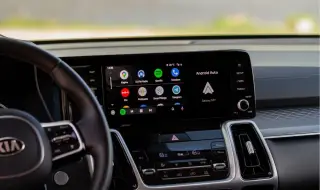
One day everything works like clockwork, and the next - the Android Auto or Apple CarPlay connection crashes every five minutes, turning every trip into a nervous agony. This common problem can have hidden culprits - from worn cables and capricious USB ports to overly aggressive system settings on your phone. Fortunately, with a little knowledge and patience, it is quite possible to restore a stable and reliable connection.
When the digital connection in the car behaves inadequately, the first instinct should always be directed to the connecting cable
In everyday use, connectors inevitably wear out, deform slightly or lose their secure fit in the smartphone port. These micro-damages are imperceptible to the human eye, but they are enough for the systems to interpret them as a sudden loss of connection.
The solution is simple but effective: Test the connection with a short, high-quality cable, preferably the original one from the phone kit or one from a well-established brand. If stability is restored, the problem is localized. Don't forget to try all the USB ports in the car. Some of them are designed only for charging and do not offer the stability needed for high-speed data transfer.
In addition, pay special attention to the ports themselves. Accumulated dust, a slightly bent metal tab, or just plain dirt can compromise the connection. In many cases, restarting the multimedia system from the car's menu can also clear accumulated software errors that lead to blockages.
After ruling out hardware problems, it's time to get to the heart of the problem – smartphone settings
Almost all manufacturers build in aggressive battery optimization features. In an effort to extend battery life, these settings close background apps without warning. Since Android Auto and Apple CarPlay have to run continuously throughout the entire journey, they often become unwitting victims of this "optimization".
The key step is: Exclude Android Auto and CarPlay from any power optimization. This exclusion should also apply to Google services, as well as the car manufacturer's app, if it is involved in the connection. Also, disable power saving modes while driving to prevent sudden interruptions in the middle of navigation.
Permissions are another critical aspect. To work flawlessly, these systems require constant access to location, phone, microphone, and notifications. If these permissions have been denied or changed over time, crashes may occur when trying to use the voice assistant or when making incoming calls.
A third group of offenders often lurks in the shadows
These are third-party applications that run constantly in the background. These include VPNs, ad blockers, security tools, or other data management applications. These tools change the way your smartphone communicates with external networks and devices, which directly disrupts the stability of Android Auto and Apple CarPlay.
The test is quick and telling: Temporarily disable all of these applications and see if the connection stabilizes. If this happens, re-enable them one by one until you identify the culprit.
Last but not least, updates play a fundamental role
It is not excluded that the system may start to behave inappropriately after a system update on your phone or car's multimedia system. This highlights the importance of keeping your phone's operating system, Android Auto app, Google services, and car software up to date.
Many manufacturers release hotfixes that resolve incompatibilities without official announcements. If the issue is specific to a specific version, checking specialized forums can shed light on whether other users with the same car and smartphone model are experiencing similar difficulties.